
AI Doesn't Have Bad Taste. You Have No System.
Why AI-generated UIs are inconsistent, and how to fix it with design systems.
You know the look of an AI-generated UI. Purple gradients that nobody asked for, sparkle icons, a card shadow that matches nothing. You open a page you haven’t touched in a week and it looks like a different product.
The fix isn’t a better model. It’s a design system.
Why AI-generated UIs are inconsistent
AI makes 200-300 visual micro-decisions per component: padding, colors, border radius. It has no memory between sessions, so it guesses fresh every time. By session 10 your app looks like three different products.
It’s not picking bad values, it’s picking plausible ones. Your system uses --space-200 for 8px, the AI writes padding: 12px. Looks fine. Just doesn’t match anything else.
Your instinct is to over-describe everything in the prompt. That makes it worse. You can’t cover every decision, and the AI fills in the gaps. Randomly without a design system, consistently with one.
Easy fixes
1. Use a “golden screen”
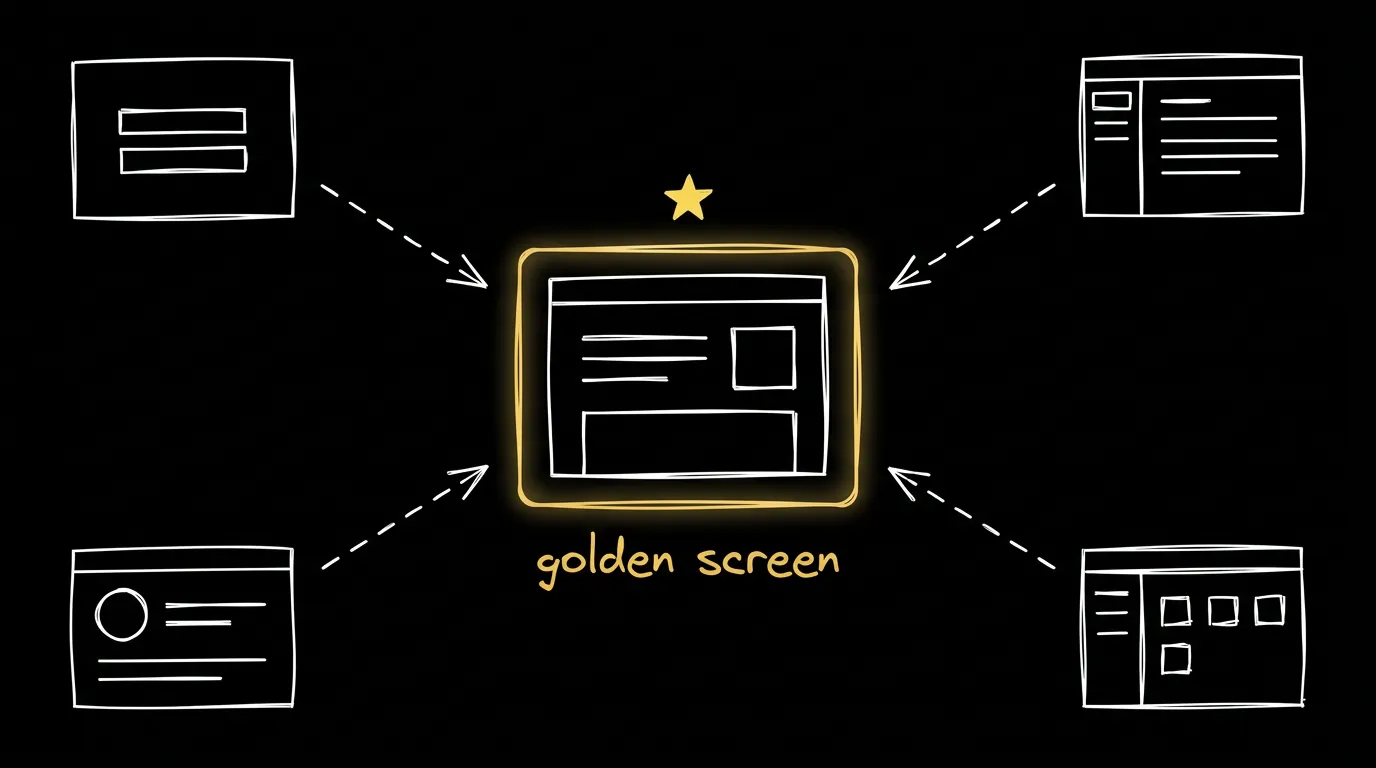
Build one page that nails your design system. Colors, typography, spacing, components, all correct. Every time you generate a new page, reference it:
Create a settings page that matches the style and design language
of this page.
AI is good at pattern matching. A visual reference beats abstract documentation. Teams go from “this looks AI-generated” to “wait, AI made this?” with nothing but a golden page. It also works as a quality gate: hold every new page against it. Does it feel like the same app? If not, your system has gaps.
2. Name your tokens well
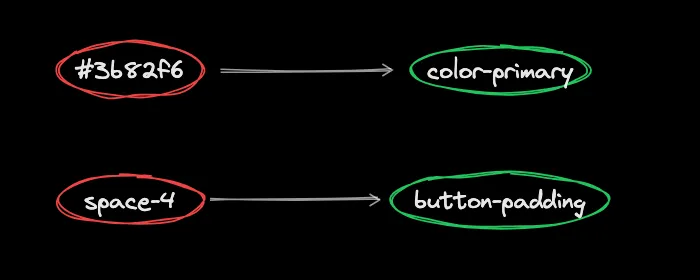
Call a color #3b82f6 and the AI has no idea what it’s for. It picks a slightly different blue every time. Call it color-primary and it knows exactly what to do. Name your spacing button-padding instead of space-4 and it goes on buttons, not randomly on cards. The more specific the name, the less the AI guesses.
3. The real fix: agentic design systems
Brad Frost, the person who literally wrote Atomic Design, just coined the term Agentic Design Systems: design systems built not for designers, but for AI agents. Google Stitch is doing something similar, baking design tokens directly into Gemini 3 so generated screens stay on-brand.
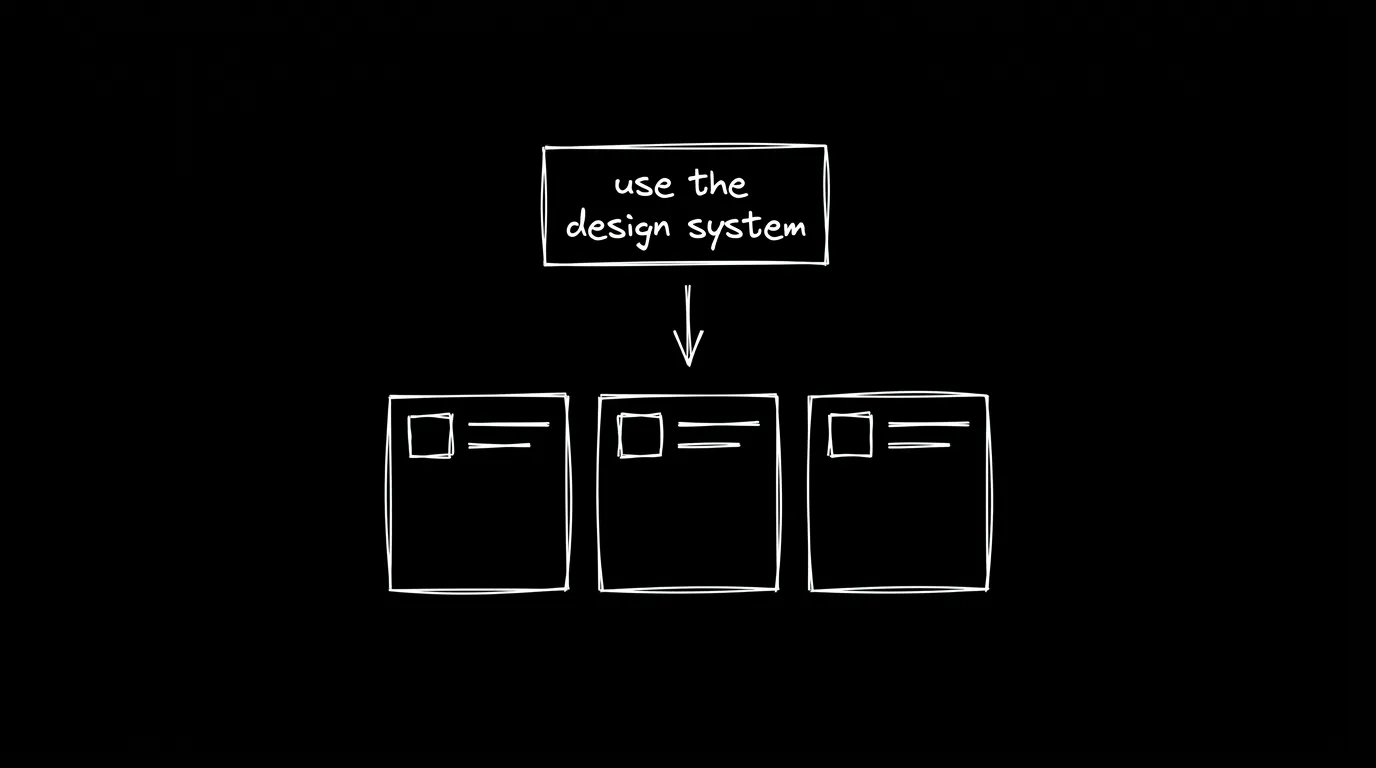
Most people paste their design system into a prompt. Sometimes the AI follows it, sometimes it ignores half of it. A document in the context window is a suggestion. A skill is a constraint. A good design system skill has three things:
- Tokens as data: your colors, spacing, typography in a format the agent can parse (not prose, actual values)
- Components as templates: real code patterns for buttons, cards, inputs, not descriptions of what they should look like
- Guidelines as constraints: rules like “always use 4px spacing grid” or “never use more than 3 font sizes per page”
Structure it this way and the AI stops interpreting.
How we do it in VibeFlow UI
You don’t need months to build a design system. VibeFlow UI is your design system manager. You can now create a system in minutes, import components from anywhere, and use it as a skill for any AI agent.
1. Create a design system
VibeFlow UI lets you build your own design system from scratch. You set the color palette, typography scale, font pairings, spacing tokens, border radius, shadows, and component guidelines.
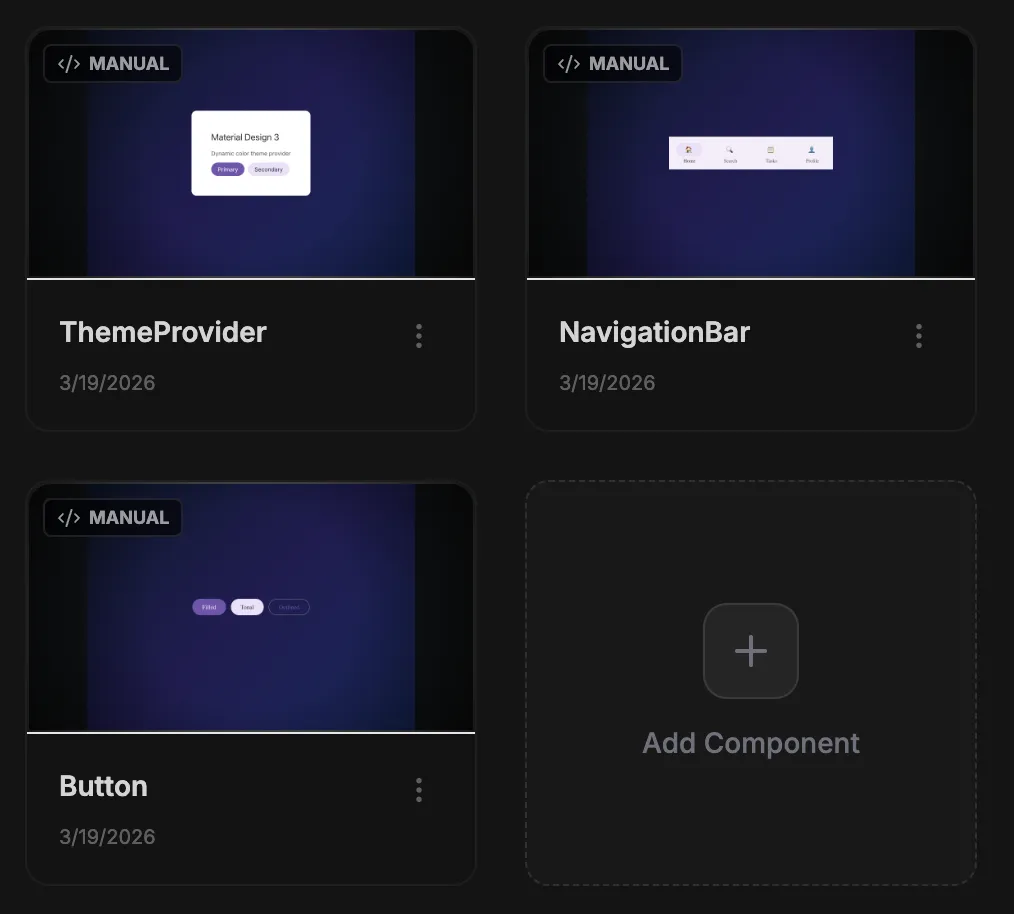
Manage your components, each with a live preview.
You can also import components from anywhere:
- From Figma: paste a component URL, get production React + Tailwind
- From any website: the VibeFlow Clipper extension lets you select and clip any section of any live site
- From screenshots: upload a screenshot, AI converts it to a component
- From conversation: describe what you want and the Vibe Designer builds it following your system
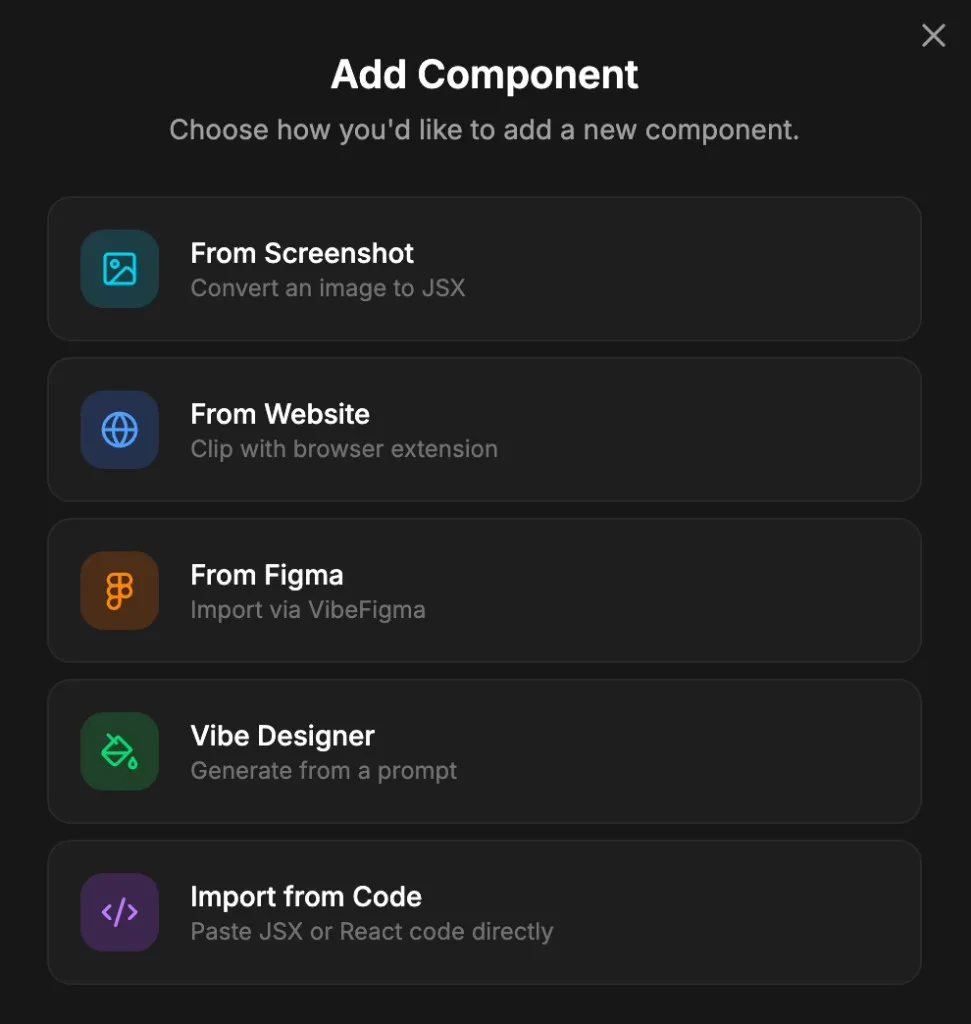
Import from screenshots, websites, Figma, prompts, or code.
2. Generate UIs with your system applied
Prompt the page you want in VibeFlow UI, apply your design system, and it builds the UI with your tokens already in place.
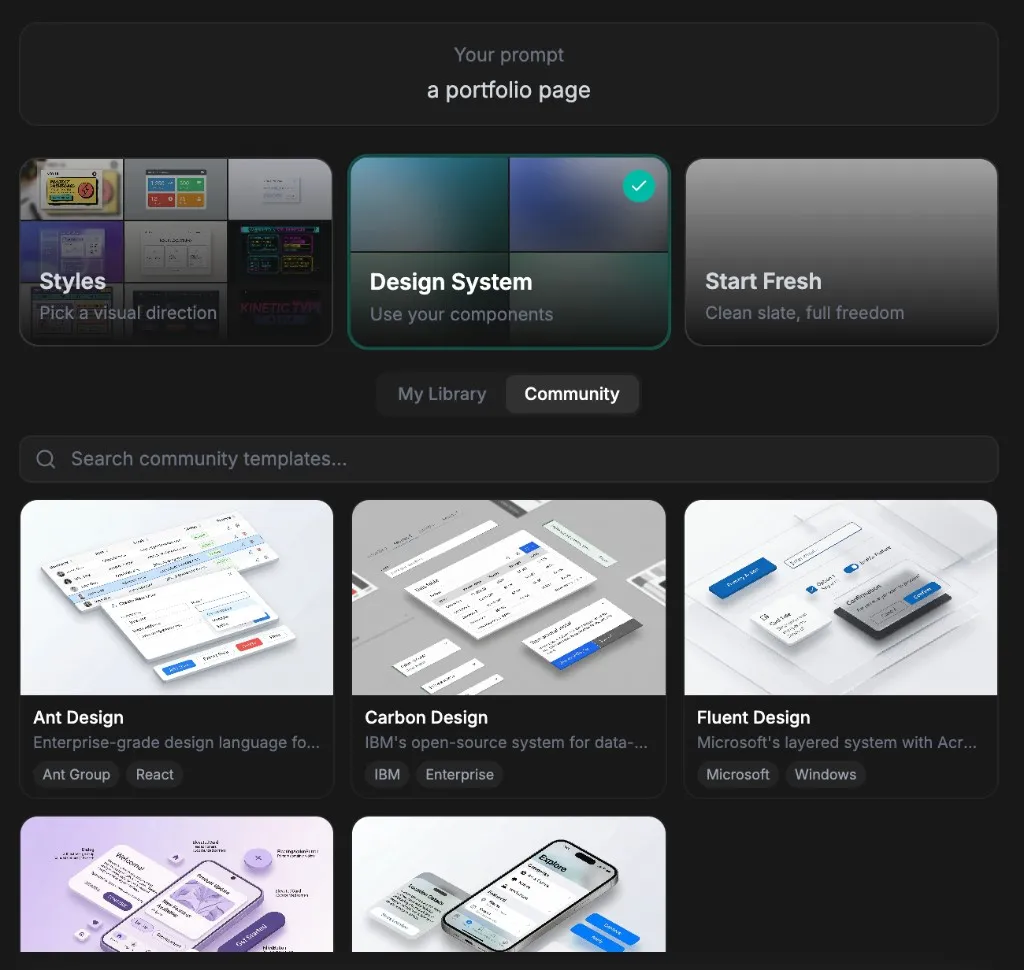
Pick “Design System” and your tokens are applied to every generated screen.
3. Use it from your editor via MCP
If you live in Claude Desktop or Cursor, you don’t need to open a browser. VibeFlow UI exposes a full MCP server. Your agent can create design systems, add components, and export skills directly from the terminal.
Look at my app in src/components and create a design system
that matches what I already have.
The agent scans your existing code, calls VibeFlow UI’s MCP tools, and builds a design system that matches your current UI. Tokens, components, guidelines, all extracted from what you’ve already built.
4. Export as a skill for any agent
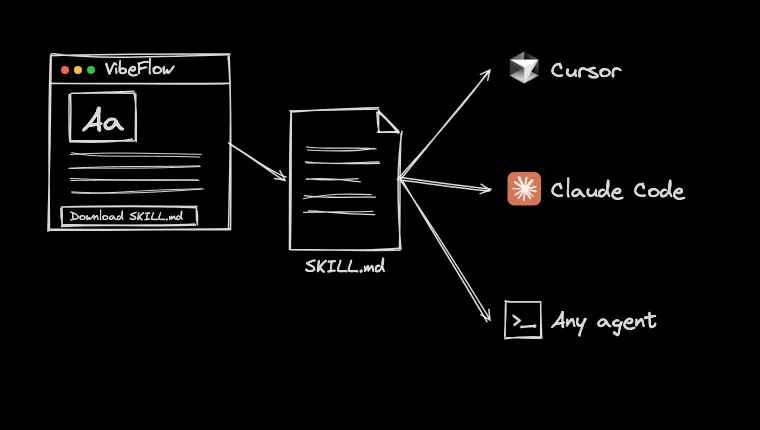
When you select a design system in the VibeFlow UI chat, it’s not pasted into context. It’s loaded as a skill that the agent calls when building components. Your tokens, patterns, and guidelines become constraints, not context window noise.
You can do the same from other agents. Download your design system as a SKILL.md file and use it in any project:
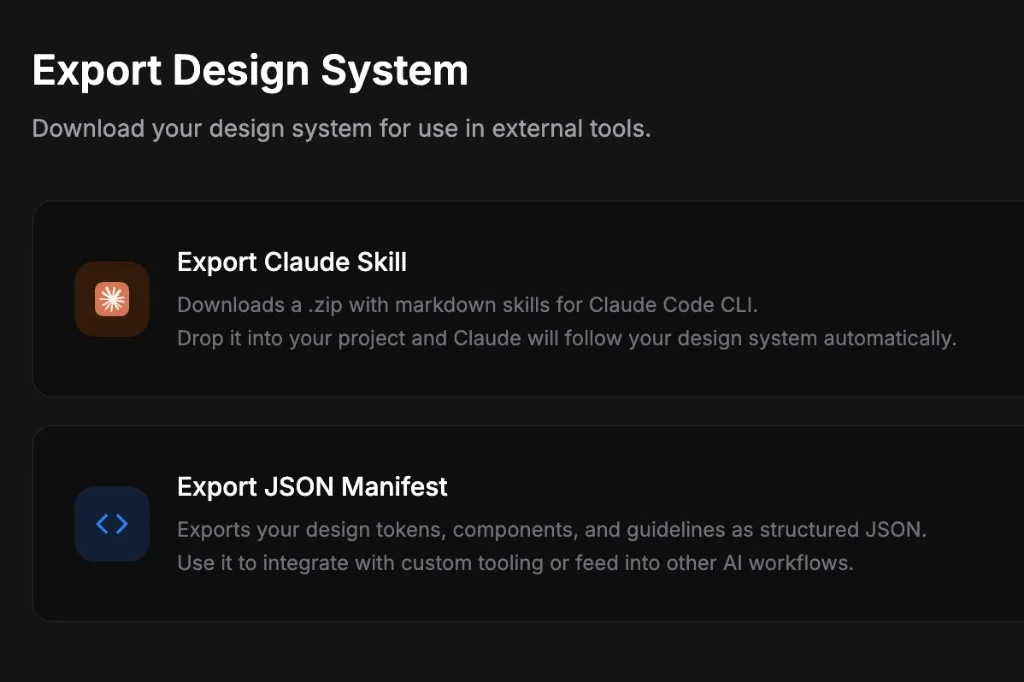
Export as a Claude Skill or JSON manifest for any tool.
your-project/
├── .agents/
│   └── skills/
│       └── my-design-system/
│           └── SKILL.md    ← your exported design system
├── src/
└── ...
Designers aren’t cooked. The handoff is.
Something AI changed about design: designers used to finish a mockup and then spend days going back and forth with developers over padding and font weights. That doesn’t happen anymore.
What hasn’t changed is taste. AI has seen millions of designs, but it doesn’t have a point of view, which is why every AI-generated app looks the same. That’s still on you. And now instead of spending your time policing pixels, you spend it defining the system that everything else follows.
Teams shipping the best products won’t be the ones with the best prompts. They’ll be the ones with the best systems.
VibeFlow UI makes that easy.